PDF Duo › Fill
Fill a PDF form on iPhone, field by field, for free
PDF Duo fills PDF forms field by field: text fields, checkboxes, radio buttons, dropdowns and lists, with Next field to move on, today’s date anywhere on the page, and a flattened copy to send. It’s free, with no account and no subscription.
Updated 27 October 2026
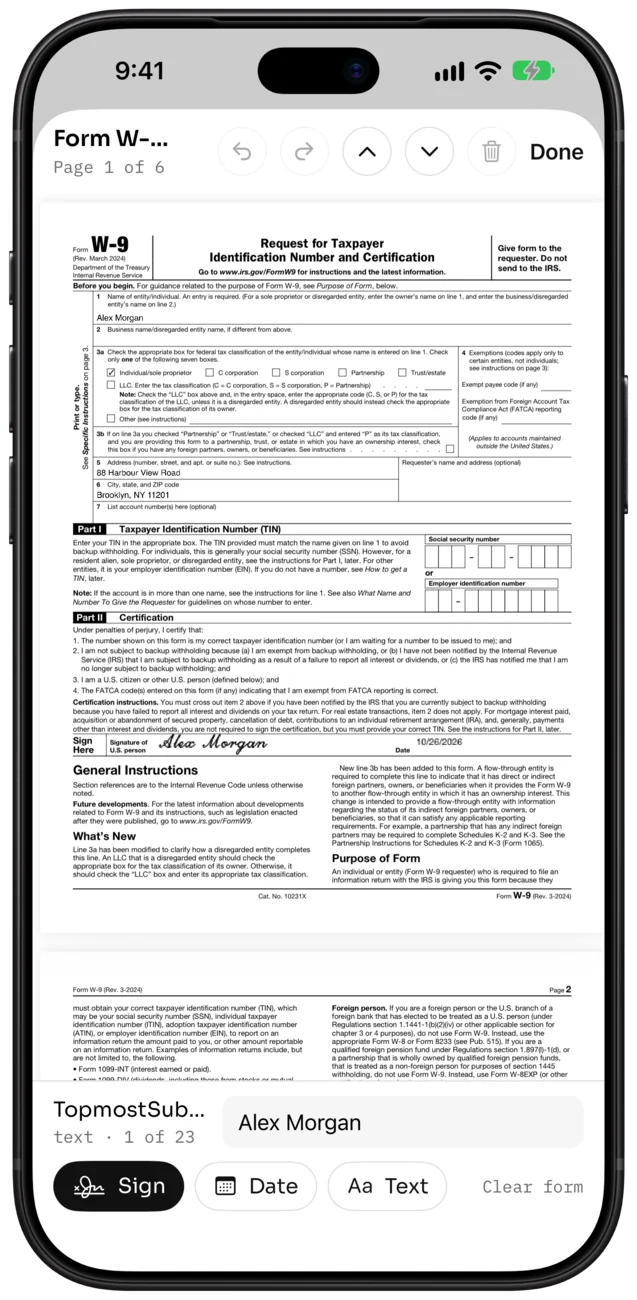
How to fill a PDF form on iPhone
- Open the form in PDF Duo and tap Fill and sign.
- Tap the first field and type. Tap Next field to move to the next one.
- Tick checkboxes and radio buttons, and pick from dropdowns and lists.
- Sign where the form asks, and add the date with Date.
- Choose More › Export flattened to send a copy in which every value is part of the page.
A form with no fields? Write anywhere
If the PDF is a scan or a flat form with no fields, add a line of text or today’s date anywhere on the page, then sign.
Start again, or undo
Clear form empties every field in one step, and every change can be undone or redone. Unsaved changes come back after a crash, and every save is checked before it replaces your file.
What it doesn’t fill
XFA forms and form scripts are not supported, so a field that calculates a total won’t update by itself. Check the numbers before you send.
Questions
Do I need a subscription to fill PDF forms?
No. Form filling, signing and flattened export are free, with no ads, no watermark and no account.
Which fields does it fill?
Text fields, checkboxes, radio buttons, dropdowns and lists, with Next field to move through them.
Can I fill a PDF that has no form fields?
Yes. Add a line of text or today’s date anywhere on the page, and sign.
Does it work with XFA forms?
No. XFA forms and form scripts are not supported.
How do I send a filled form so it can’t be changed?
Choose More › Export flattened. The form values, marks and signature become part of the page.

Free on the App Store. Free · No ads · No watermark · No account